
APCO 2026 Conference App

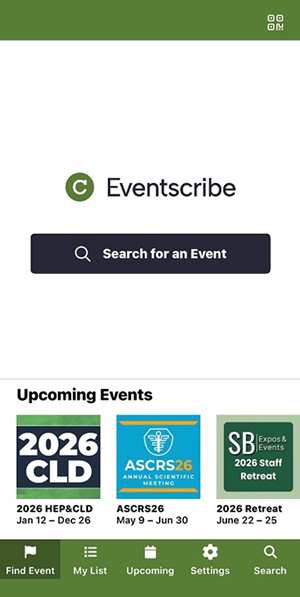
The APCO 2026 app is now available through the Apple App Store and Google Play.
1
For easy download, scan this QR code on your mobile device or use this link. (We recommend using your mobile phone’s camera.)


2
The QR code will take you to the Eventscribe page in your app store. Be sure to download the app.
3

4
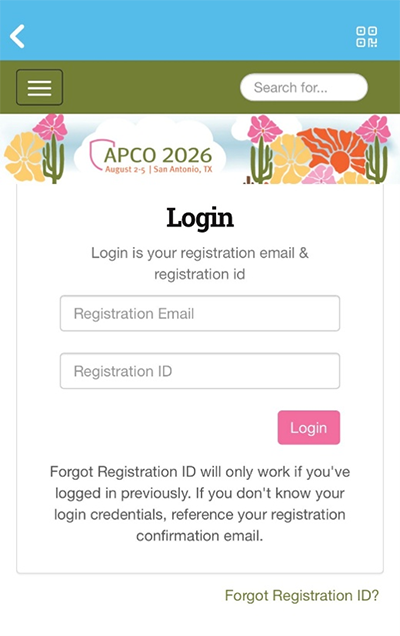
To log in, use your registration email and registration ID.
Key Features
Ask AI
Have a question and don’t know where to find the answer? Ask our AI assistant! New this year, the AI assistant is personalized and will tailor answers specifically to your needs.
Favorites/Saving Sessions
Curate your own personal conference schedule by saving your favorites. When browsing the Full Program list, tap the star icon to favorite a session or activity. All starred items will show up in your “My Sessions” tab for easy reference.
Alternatively, if you use the AI assistant for session recommendations, you can tap the star directly in the chat window to add to “My Sessions” as well!
Saving Exhibitors
In the Exhibit Hall you can view the full exhibitor list by company name or by booth number, as well as the floor plan. In the exhibitor list you can star any exhibitor to save them to favorites. In either list (exhibitor by company or by booth number) you’ll then be able to tap the star icon in the top left to show only your favorites.
Just like for sessions*, you can use the AI assistant to help you find exhibitors that match your needs or interests.
*Key Difference: When you save/star an exhibitor in the AI assistant, it will not carry over to the Exhibit Hall lists. The two are currently unable to sync, but you can view your suggested favorites again at any time in the AI assistant.
Find Your People
Use the Attendees button to view a list of speakers, exhibitors and fellow conference attendees. You can use the search bar at the top of the speaker & attendee lists to find connections via keywords or by using the pre-existing filters along the bottom of the screen.
If you would like to be visible to other attendees in the app, you will need to allow this option when logging in for the first time, or in your app settings after.
FAQs
If the information below does not answer your question or solve your issue, contact customer support:
Saturday - Sunday, 9 a.m. - 5 p.m. Central
Call (443) 819-2367
Monday - Friday, 8 a.m. - 8 p.m. Central
Call (410) 638-9239
Getting asked to login every time you access the app?
Uninstall the Eventscribe app and reinstall it. Log in once to the APCO 2026 app, and your login information will be saved for the remainder of the conference.
Content not up to date?
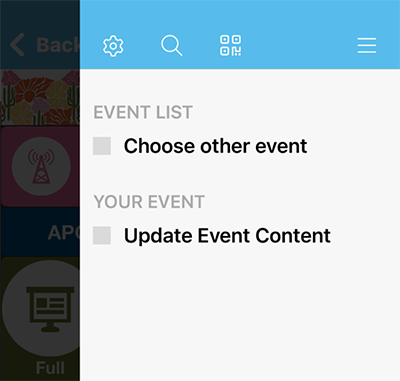
You can click on the hamburger menu icon in the top right of your screen, then click on Update Event Content. This will refresh the app with all the latest information.
App not functioning the way you expected? Try uninstalling and reinstalling the app. This is the best way to clear up any cached data or inconsistencies. Don’t worry! Your favorited sessions will be there when you get back.
If you are having trouble with the way content displays on your device, you can find all the same information, PLUS Matchmaking with exhibitors, on the APCO 2026 Eventscribe website.
Conference App Sponsored by